AppGate ZTNA appliances are secure by design and include hardening steps from the Security Technical Implementation Guide (STIG) for Ubuntu, developed by the Defense Information System Agency (DISA). The steps in this section describe additional measures you can take to improve system security. Each step is independent and you can implement one or more in any combination.
This section covers the security of the AppGate ZTNA Collective and its related configurations. It does not cover general network security or the security of protected resources accessed through AppGate ZTNA.
AppGate ZTNA system hardening steps
1. Proxy protocol
The System TLS Connection can be configured to use proxy protocol by selecting Enable Proxy Protocol. When this option is enabled, the system accepts client connections that use either the SPA key or proxy protocol. You must limit allowed connection sources to the proxy only—otherwise, users connecting directly can bypass SPA and spoof their clientSrcIP by crafting a proxy protocol packet that contains a spoofed IP address.
Action: Set Allowed Sources to the proxy’s IP address only.
NOTE
By default, Allowed Sources includes two entries:
0.0.0.0/0and::/0. Edit or delete both entries before adding the proxy source, otherwise the new entry will be overridden.
2. Device registration
AppGate ZTNA can limit new device connections to the system. A new device registration occurs the first time the system encounters a specific combination of user and device. You can restrict new device registrations by quantity per user, by multi-factor authentication (MFA), or both.
Use Prevent new device registrations that exceed this per user limit in the identity provider to set a maximum number of devices per user—for example, one or two. After all required devices are registered, block all new registrations by setting the limit to zero. This does not affect existing registered devices. To add a new device later, remove an existing device from the registered devices list.
After the per-user limit is checked, you can apply MFA at sign-in to further restrict new device registrations. The available options are:
Not required: All new devices are registered automatically.
Once: MFA is required to register each new device.
Always: MFA is required at every sign-in.
For more information, see Multifactor authentication.
Actions:
Set a suitable value for Prevent new devices registrations that exceed this per user limit
NOTE
The default setting for MFA at Sign-in is Not required.
3. Using IP addresses instead of hostnames
A Gateway or Connector hostname does not need to be published outside the AppGate ZTNA system—not even to users. Using IP addresses instead of hostnames means no external DNS records exist for these appliances. Combined with SPA (particularly in UDP-TCP mode), this makes the appliances extremely difficult to locate, which in turn makes attacks significantly harder to mount. New hidden Gateways can also spin up automatically, and users fail over to them without disruption, providing effective DDoS mitigation.
Actions:
Use IP addresses for Client Hostname/IP on Gateways
Use IP address for the Appliance Hostname on Connectors
4. SSH credentials
When you set up a new appliance from the command line, the first Controller is seeded with a cz user password for SSH access. Cloud instances are an exception—they require PKI authentication. Public key authentication is stronger than password-based authentication. Change the SSH authentication method to public key for the first Controller.
First generate your SSH key pair.
Add SSH keys
To add an SSH key for the cz user on an appliance, run one of the following commands from the command line on the first Controller:
sudo cz-config user --authorized-keys "KEY"Replace KEY with your SSH key pasted between the quotation marks—for example, "ssh-rsa AABBCCDD......"
sudo cz-config user --authorized-keys-file FILEReplace FILE with the path to your SSH key file.
These commands overwrite any existing keys. To add a key without removing existing keys, follow these steps instead:
Copy
/home/cz/.ssh/authorized_keysto a new location, such astemp/new_keys.Open the copied file, add the new key on a new line, and save. Each key must be on its own line.
Run:
sudo cz-config user --authorized-keys-file FILE
Pin SSH keys
To pin the keys and prevent a cloud provider from overriding them, run:
sudo cz-config user --pin {true,false}
The default value is false.
Then, in the admin UI, go to System > Appliances > System Settings > Settings > SSH Server, and disable Password Authentication.
An anti-bot feature prevents repeated password guessing attempts. You can configure the threshold at which this feature activates. See Advanced > SSH command line administration.
5. SSH server access (default port 22)
Exposing SSH access to appliances from the internet increases security risk. Limit SSH access to an internal or management network using one of the following methods:
Configure your network security group or firewall rules to block port 22 from external sources.
Use a separate management network connected to a separate network interface on the appliance, then specify only that interface in Allowed Sources for the SSH Server under Network Interface.
Set Allowed Sources for the SSH Server to the internal network address and netmask length.
NOTE
The default configuration includes two sources:
0.0.0.0/0and::/0. Edit or delete both before adding new sources, otherwise new entries will be overridden.
For systems accessible through an AppGate ZTNA Gateway, you can improve security further by using the AppGate ZTNA client and providing access through the tunneled interface (port 443) using an entitlement to port 22 on the internal interface of the appliance.
Action: Add one or more appliance access entitlements for port 22 to the administrator policy that already contains the admin roles.
6. MFA for admins
AppGate ZTNA supports mandatory MFA for administrators. Admin MFA can be linked to a specific MFA provider, which can differ from the one used by standard users. See MFA for admins.
Action: Enable MFA for administrators.
NOTE
Admin MFA is disabled by default. When enabling it, exclude any API users if you use APIs to manage the Controller.
7. Admin roles
AppGate ZTNA includes a role-based delegated administration system. For each role, you can configure the privilege type (for example, read), the target (for example, entitlements), and the scope (for example, tagged with). Roles can be assigned with the same level of granularity as entitlements in policies.
Actions:
Configure delegated admin roles based on least privilege. Add any API users and restrict their rights to only the APIs they use to manage the Controller.
8. Admin rights
In Policies (Access > Policies), you can define assignment criteria that control when specified admin roles apply—the same way you configure user entitlements. Available criteria include:
IP-based criteria—for example, to allow only internal IP addresses
Time-based criteria—for example, to allow access only during working hours
GeoIP-based criteria—for example, to allow access only from specific locations
Action: Configure the assignment criteria in the admin UI access policy
9. Admin token expiration
When an admin signs in to the admin UI, they can select the Keep me signed in until the token expires checkbox. A cached valid token survives a reboot and allows immediate access to the admin UI when the browser reopens. To prevent unauthorized access, apply the following measures.

The cached token is removed when the user signs out of the admin UI. All remaining tokens also expire when the user signs out, even if the session is still active.
Actions:
Select Keep me signed in until the token expires only on secure computers.
Always sign out of the admin UI using the sign-out option at the top right.
Set the Administration Token Expiration to a value that meets the access needs of your admins while aligning with security best practices (default is 24 hours).
10. Admin/API TLS Connection (default port 8443)
Port 8443 is used for admin users and API calls and applies to Controllers and the LogServer only. This port is not protected by SPA. Do not allow admin access from the internet. Limit access to an internal or management network using one of the following methods:
Configure your external firewall rules or cloud provider network security group to allow port 8443 access from the internal network only.
Set Allowed Sources for the internal network—for example,
eth1.

NOTE
The default configuration includes two sources:
0.0.0.0/0and::/0. Edit or delete both before adding new sources, otherwise new entries will be overridden.
Provision access to the admin UI through an AppGate ZTNA Gateway. Using the AppGate ZTNA client, grant access to the internal IP address of the Controller or LogServer through the Gateway's tunneled interface (port 443). Create a Controller or LogServer access entitlement using their internal IP addresses on port 8443 and add it to the administrator policy.
11. Admin/API TLS Connection HTTPS certificate
Admin/API access uses the Unique Admin Hostname, which uses a self-signed root certificate. Browsers do not trust this certificate by default and display an "unsafe" warning. To remove this warning, use an externally signed certificate. This requires a PKCS#12 file containing a certificate for the Unique Admin Hostname signed by a trusted certificate authority (CA), and the private key used to terminate the admin and API HTTPS connection.
Adding a trusted certificate associates it with the port defined in the Admin/API TLS Connection only. A trusted certificate removes the browser warning and eliminates the possibility of man-in-the-middle attacks. It also simplifies setting up API calls to the Controller using TLS.
Action: Add a trusted certificate for the Admin/API TLS connection, or trust the self-signed root certificate.
12. Use of SPA
Client and peer connectivity requires sending a Single Packet Authorization (SPA) packet before establishing a connection. By default, AppGate ZTNA uses SPA for all communications from clients to Controllers and Gateways, and between peers, using TCP SPA mode. UDP-TCP SPA mode provides stronger protection.
Action: Enable UDP-TCP SPA
NOTE
UDP traffic on ports 53 and 443 must be allowed to appliances for UDP-TCP SPA to work reliably.
NOTE
Users may have difficulty connecting from locations with strict outbound UDP firewall rules. UDP-TCP SPA mode includes SPA overrides that you can configure to address this.
13. System TLS connection (using SPA)
Clients and other appliances within the Collective connect to the System TLS Connection (default port 443) on each appliance. This port is protected by SPA and is designed to be exposed to the internet. In constrained use cases, you can improve security further by restricting access to specific networks—for example, to allow access from a wired network but not Wi-Fi, or to block connections from the internal NATed IP of a firewall while still allowing other internal access.
Actions:
Configure your cloud provider’s network security group or external firewall rules to allow port 443 access from a defined subnet only.
Set Allowed Sources in System TLS Connection from a defined subnet.
NOTE
The default configuration includes two sources:
0.0.0.0/0and::/0. Edit or delete both before adding new sources, otherwise new entries will be overridden.
14. Client inactivity timeout
Desktop clients sign out automatically when the user or network has been inactive for the configured timeout period. This feature closes open tunnels to Gateways and stops background traffic from unattended machines. When combined with a suitable remedy action, it requires user interaction when the client reconnects.
Action: Set a suitable timeout period and timeout trigger.
15. Access to other services
For each appliance, you can restrict access to additional services beyond SSH. You can add allowed sources for Ping and restrict allowed sources for SNMP, Healthcheck (port 5555), and Prometheus (port 5556). Limit access to each service to only the hosts that require it.
Action: Set Allowed Sources for each service using address and netmask length, network interface, or both.
NOTE
Default options may include two sources:
0.0.0.0/0and::/0. Edit or delete both before adding new sources, otherwise new entries will be overridden.
16. Site access
When you configure a new appliance, you can restrict the extent of a user's network access by defining specific Allowed Destinations for the Gateway rather than using a broad address range or a single network interface. This setting works in series with entitlement-based access rights. If a delegated administrator misconfigures an entitlement, the Allowed Destinations rule may still block the traffic.
Action: Define one or more Client Tunneling - Allowed Destinations entries that set the maximum extent of user access for a given Site.

NOTE
Allow Destinations is empty by default. No packets pass through until you configure at least one entry.
17. Use of mTLS
All internal communications within an AppGate ZTNA Collective use mutual TLS (mTLS). The Controller may also interface with external systems. Use mTLS for those communications wherever possible.
Action: Enable TLS and use the trusted certificate store for the certificates from the external systems.
NOTE
Some external system configurations use a local setting instead of the trusted certificate store.
18. Securing NTP
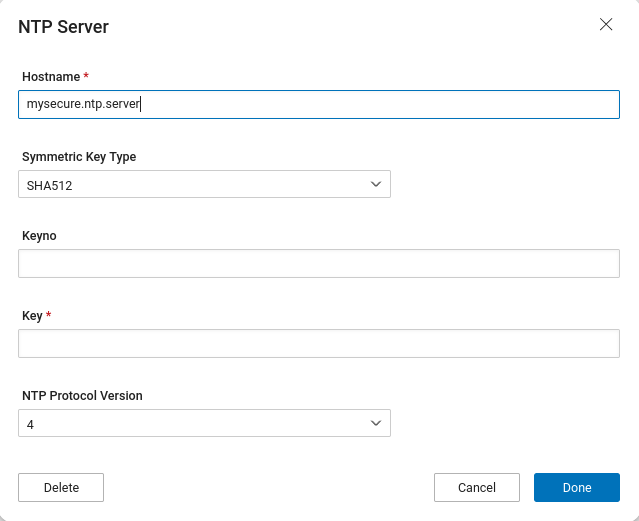
AppGate ZTNA relies on NTP to maintain the integrity of security mechanisms such as SPA and TLS. The default NTP configuration uses unauthenticated public Ubuntu NTP servers, which means NTP replies could be intercepted and modified.
Action: Delete the default NTP servers and replace them with alternative servers. Private NTP servers on a protected network are preferred. If private servers are not available, secure the new servers by selecting the Symmetric Key Type SHA512 or SHA384 and entering the related key number and key value.
19. Appliance customizations
Appliance customizations allow the execution of arbitrary code with root privileges. When you save a new appliance seed file in the admin UI, customizations are disabled by default. Do not enable this feature unless it is required.
You can also disable or enable customizations from the command line at any time.
Action: Disable the appliance customization feature if it is not required.
20. Client auto-update service
The auto-update service runs on the client machine and increases the attack surface of clients. If you do not use this feature to deploy upgrades across your users, disable the service.
Action: Disable the auto-updater.
21. Client security
Install clients through an enterprise device management system such as Intune, Jamf, or SCCM, and push the AppGate ZTNA client profile as part of the installation parameters. To ensure the client always runs with this default configuration, set a device policy that prohibits configuration changes to the following client functions:
Autostart
Add and remove profiles
Keep me signed in
Browser and certificate auto sign-in
Suspend
Sign out
Quit
22. Portal appliance
The Portal is an edge device with a Portal Hostname that typically has a public DNS record. This means HTTPS (port 443) and any configured listening ports—forwarded through Gateways to protected hosts—are open to the internet. Neither is protected by SPA, making the Portal more exposed than other appliances in the Collective. A compromised Portal appliance could expose data to an attacker or serve as a jump server.
Actions:
Limit access to the Portal appliance by:
Setting inbound firewall rules for port 443 and any listening ports only.
Setting Allowed Sources in HTTPS Settings using address and netmask length, network interface, or both. By default, Allowed Sources includes two entries:
0.0.0.0/0and::/0. Delete both before adding new sources.Locating the Portal in a DMZ, separated from other systems.
Use a unique SPA key for the Portal's client profile to limit the impact of an SPA key compromise.
Do not use wildcard certificates for proxied entitlement certificates (PKCS #12). Upload one or more certificates specific to each protected host instead.
23. STIG
The STIG guide for Ubuntu includes many steps that further harden the appliance. Several are built into the appliance by default. Others are optional because they can negatively affect user experience or system performance. Unless you have specific compliance requirements that require these optional steps, leave the system as configured.
Action: SSH to each relevant appliance and run man cz-stig to list optional STIG steps available.
Summary
Combining the built-in appliance hardening in AppGate ZTNA with the steps in this section produces a strong security posture. The table below summarizes the outcome of applying all measures:
Area | Outcome |
|---|---|
Network exposure | Appliances are largely hidden on the internet with minimal DNS records and exposed ports. Except for the Portal, all internet-facing access is SPA-initiated and encrypted with ECDHE-RSA-AES256-GCM-SHA384. |
Device authentication | Only enrolled devices are authenticated. Compromised usernames and passwords alone are not sufficient for access. |
Admin access | Admin access is restricted to defined internal or management networks. Admins require MFA, receive roles with limited rights, and all actions are recorded in audit logs. |
SSH access | SSH access is restricted to internal or management networks, requires public key authentication, and uses brute-force blocking. Only |
Client access | Client access can be restricted by source subnet and by defining allowed destination subnets for protected hosts. |