Conditions define the criteria and user actions that control when network resources in entitlements can be accessed.
Prerequisites
Preconfigure the following elements:
MFA Provider. For multifactor user interactions, see Configuring MFA providers.
Identity Provider. For password user interactions, see Configuring identity providers.
Customized claims. To use customized claims, see User claim scripts and Device claim scripts.
Add a condition
To create a condition:
Go to the Conditions page (Access > Conditions).
Select +Add and complete the following fields:
Name. Enter a name for the condition.
Notes. Optional. Enter notes for the condition.
Tags. Click +Add to add tags to the condition.
Continue to complete the fields in the following sections:
Access criteria
Setting Modes. List mode provides three options to define the criteria that must be true for access in an entitlement to be allowed. When you select a claim, the relevant parameters appear automatically.
Switch to Script Mode. Use the script editor to edit existing expressions or create your own. The JavaScript engine runs in a sandbox that prevents file system access. However, you can make external calls by using:
NOTE
Script mode is intended for advanced use cases, and it can break compatibility with the other three modes.
HTTP PUT
HTTP POST
HTTP GET
HTTP DELETE
For example, you can pass a value to an external system for validation as part of the expression. For more information about scripting, see Claims and scripts.
Criteria Combining Mode. Without scripts, criteria expressions support three combining modes:
<All Criteria below must be true>. A logical AND; all criteria must evaluate to true.
<At least one of the criteria below must be true>. A logical OR; at least one criterion must evaluate to true.
<Criteria are met according to Custom Logic>. A Boolean expression of multiple criteria must evaluate to true.
Criteria. If you select criteria that include dynamic claims (claims that can change during a session), you can create access criteria expressions that enable AppGate ZTNA to respond to changes in a timely manner. For example, you can use the clientSrcIP claim to remove access to protected resources when the user leaves the office to work from home. Conditions can include multiple criteria, so decide how to combine them. Script mode is also available for advanced use cases.
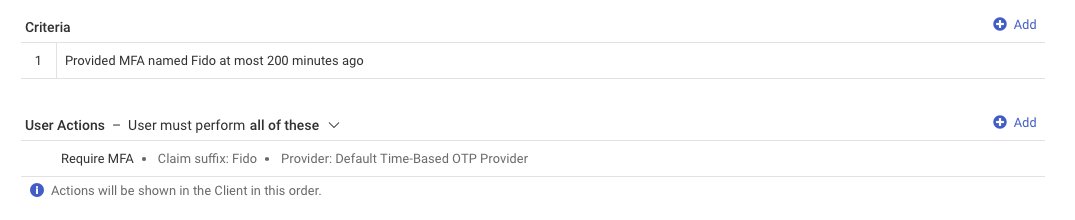
Type - User Actions. In the Type list, User Actions includes three user response claims: Provided MFA, Provided Reason, and Password. Unlike other claims (which are hard-coded or preconfigured, for example, in the identity provider), user interaction names are defined in the condition. When you configure a claim suffix (name) and time period (if required), the system automatically creates a new user response claim that uses that name.
Type | Claim Suffix (Name) | Minutes (Time window) | Internal Claim Name | Criteria Check Method Used |
|---|---|---|---|---|
The claim name that refers to this occurrence of the user interaction | Time window during which the claim evaluates to true | The internal user response claim generated from the given claim suffix (name) | Matching criteria check method used to evaluate if the claim is true or false | |
Provided MFA | Example: general | Example: 60 |
|
|
Retyped Password | Example: finance | Example: 60 |
|
|
Provided Reason | Example: github | n/a |
|
|
User interactions provides additional details and examples about the built-in check methods used and how they tie to claim naming.
Other claim types. As you build an expression, you are prompted for the required parameters for the selected claim.
Claim type | Example |
|---|---|
User Claim | "groups match": use this option to check for membership of an LDAP group. The match operator uses exact match. If you test the LDAP "groups" claim with the contains operator, you must provide the full FQDN of the group name. For example:
For security reasons, we do not recommend using partial matches. However, you can do partial matching in the JavaScript editor. You can flatten "groups" claim to a single string Note the trailing comma in the example. Include the trailing comma for security reasons to prevent unintentional matches, such as |
Device Claim | "os.family": Use this option to include devices with a specific operating system, such as Windows. "isFirewallEnabled": Use this option to check whether a device firewall is enabled.
|
System Claim | "clientSrcIP": Use this option to match an exact client IP address, such as 19.34.6.120. You can include multiple user interactions in your access criteria. For example, to track why a user requires access, you can combine Provided Reason and Provided MFA to access a protected resource. Claims in detail provides details about all available access criteria. |
Custom Logic. Available only when you use <Criteria are met according to Custom Logic> mode. Combine the numbered criteria (defined above) into a simple Boolean expression.

In Custom Logic mode, the only allowed operators are AND, OR, NOT, and parentheses ( ). If you remove access criteria from an expression, delete (edit) the numbered line item and update the custom logic to remove any references to that item. Otherwise, it will remain in the underlying JavaScript expression.
User Actions. Displays a message or user interaction prompt on the user's device when the access criteria expression fails. See User interactions for more in-depth information. Complete the required fields:
NOTE
If your access criteria include Provided MFA, Retyped password, or Provided reason claim(s), use the same claim suffix for the corresponding user interaction.
Type of Interaction. Select the required user interaction and complete the relevant fields:
Display message
Message. Enter the text to display to the user. Use the message to explain what happened and what action is required. Users might have more than one user interaction configured, so be clear about which interaction (or Collective) the message applies to. Limited HTML and variables are supported.
Require MFA
Message. Enter the text to display to the user. Use the message to explain what happened and what action is required. Users might have more than one user interaction configured, so be clear about which interaction (or Collective) the message applies to. Limited HTML and variables are supported.
Claim Suffix. Sets a user response claim with this name. Use the same name in the related access criteria. If you configure MFA at sign-in and also plan to use the require MFA user interaction, use the same user response claim suffix for both to avoid prompting the user to perform MFA twice within a short period.
MFA Provider. Select the MFA provider that validates the user interaction. The default OTP provider appears by default.
Provide reason
Message. Enter the text to display to the user. Use the message to explain what happened and what action is required. Users might have more than one user interaction configured, so be clear about which interaction (or Collective) the message applies to. Limited HTML and variables are supported.
Claim Suffix. Sets a user response claim with this name. Use the same name in the related access criteria.
Example: If you set an access criterion of Provided reason with a claim suffix (name) of
name1, you must configure a matching Provided reason user interaction with a user response claim suffix ofname1so the user can enter the required reason.
Password
Message. Enter the text to display to the user. Use the message to explain what happened and what action is required. Users might have more than one user interaction configured, so be clear about which interaction (or Collective) the message applies to. Limited HTML and variables are supported.
Claim Suffix. Sets a user response claim with this name. Use the same name in the related access criteria.
Identity Provider. Select the identity provider that validates the user’s password. Defaults to the provider used at sign-in.
Example: If you set an access criterion of Retyped password with a claim suffix (name) of
pass1every 120 minutes, you must configure a matching Password user interaction with a user response claim suffix ofpass1and the message "Please enter your password".
NOTE
If you use a RADIUS identity provider, you can use
%RADIUS_MESSAGE%to include thereply-message (24)from the RADIUS server. Example: Require MFA named<string>with the text"%RADIUS_MESSAGE%"
Multiple User Actions. You can add multiple user interactions and specify whether the user must complete one of them or all of them. If the user must complete one, the client displays the first user interaction (including any prompt/message) and provides a link to a page that lists all configured user actions in the order set in the admin UI.
If the user must complete all actions, the client displays the first user interaction (including any prompt/message) and then displays each subsequent interaction in the order set in the admin UI. Use the up and down arrows to reorder the list.
Reevaluation
You can reevaluate access criteria expressions so AppGate ZTNA can respond to changes in a timely manner. Complete the following fields to configure reevaluation settings:
Periodic Reevaluation (UTC). The Gateway periodically reevaluates a user’s claims. This is mainly required when you use password and MFA user interactions to verify that related claims are still valid. This option forces reevaluation every hour, every 15 minutes, or every 5 minutes from the time the user logs in. For many conditions, there is no typical use case because the Gateway knows when to reevaluate a user’s entitlements (for example, device claims are checked every 5 minutes and reevaluated if they change). Periodic reevaluation might be required in two situations:
User interactions where the lifetime of the claim is less than the claims token lifetime. A periodic check is required to determine whether the claim has expired.
Conditions that require periodic checking, such as verifying that an external system still reports it is performing backups.
For more information about periodic reevaluation, see Real-time reevaluations.
Time of Day for Reevaluation (UTC). The Gateway reevaluates a user’s claims at the specified times. This is required if the access criteria includes a temporal element, such as “only after 17:00.” This option lets you force reevaluation at a fixed time of day (UTC). For many conditions, there is no typical use case because the Gateway knows when to reevaluate a user’s entitlements. Time-based reevaluation might be required in two situations:
Used with a time-based condition, such as requiring all users to disconnect before a server backup.
Conditions that must be evaluated at a specific time.
For more information about specific reevaluation times, see Real-time reevaluations.
Managing conditions
Use the action button—the three dots icon ( ) to the right of each line item—to access the following option:
View linked Entitlements. Analyzes the system configuration and identifies all entitlements that use this condition.
Actions menu
On the Add or Edit Condition page, the Actions menu lets you clone the condition or test access based on the condition’s settings.