When a Gateways evaluates access criteria (in any mode) and the result is false, it can initiate a user interaction and send it the client. This section goes into more detail about user interactions configured in conditions and using user response claims as access criteria.
What is a user interaction?
A user interaction is an optional setting that helps prevent users from being blocked from connecting. If the user provides the requested input, the system sets a new user response claim. That new claim triggers a reevaluation of the access criteria and, if configured correctly, the criteria now evaluates to true and the user can connect.
Make sure the user response claim suffix (set by the user interaction) is included in the access criteria expression. Otherwise, the system might prompt the user (for example, for a password), but because the user response claim is never checked, the evaluation continues to return false. For more information about configuring user interactions, see Configuring conditions.
You can configure multiple user interactions. Users can be required to complete all interactions or one interaction. You can also set the order in which interactions appear in the client.
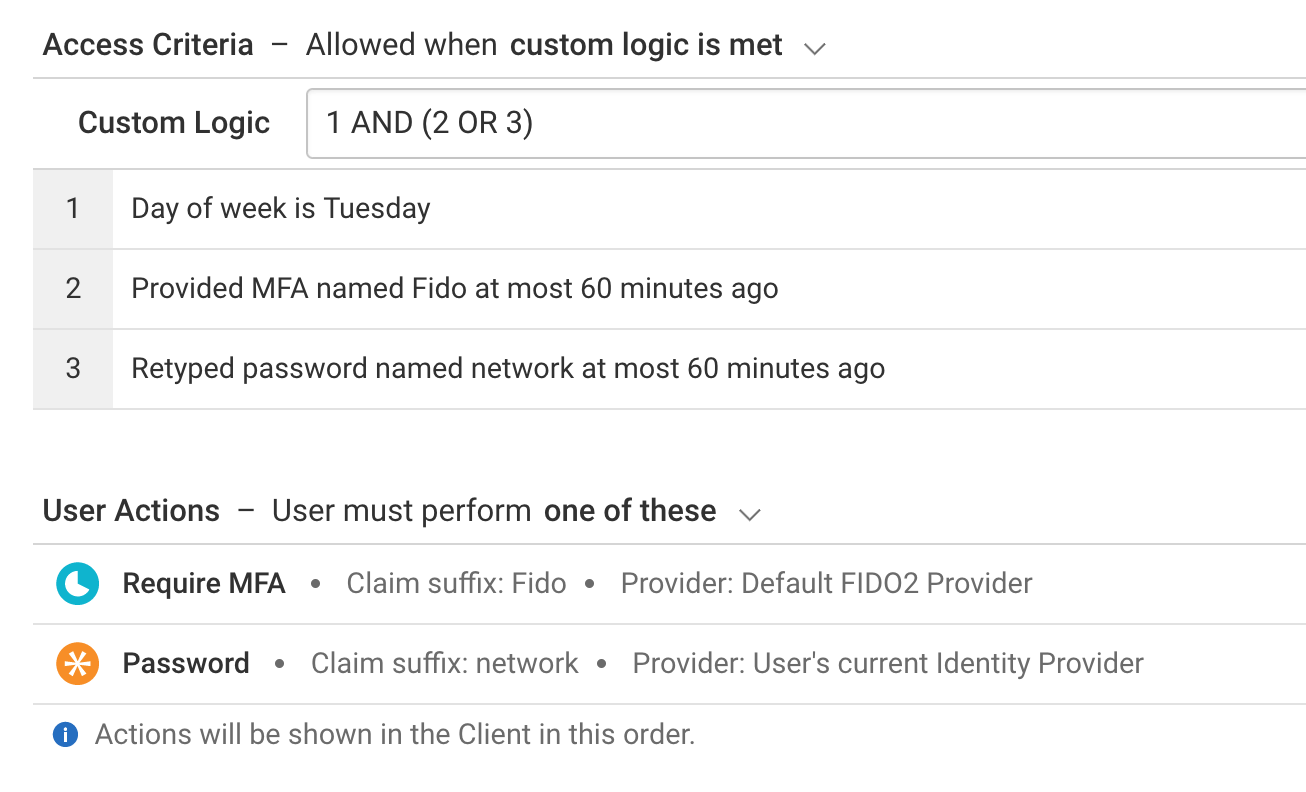
The one of these option is useful when you have a primary MFA method (for example, SMS OTP) and a backup method (for example, when the user is out of phone coverage). The user can select an alternative interaction method. This can also help during a transition from one MFA solution to another.
The all of these option lets you enforce stronger authentication while also capturing why a user requires access.
Types of user interaction
When you configure a user interaction, the user sees a message on their device that matches the required action (if any). The message can explain why access is denied or prompt for input (for example, a password). Configure this text in the Message field. The message supports variables, which let you substitute claim values into text displayed to the user. For example:
${claims.user.firstName}, please re-enter the password for the ${claims.user.ag.identityProviderName} identity provider you used earlier.
To substitute risk scores, use the risk rule identifier shown in the user claims in session details. For example, if the identifier is a59003de-4eea-4bc9-90f9-7a8be1acd561, use:
${claims.user.ag.risk.a59003de-4eea-4bc9-90f9-7a8be1acd561.reason.message}
NOTE
You can substitute only integers (from 6.4.2) and strings. Objects and arrays are not substituted.
Display message
Use this user interaction to provide helpful information, such as why access was blocked (when the condition evaluates to false). Display message does not set a user response claim. Claims known by the Gateway can be used as variables in the message by using syntax such as ${claims.firstName}.
The display message user interaction can be used in the following ways:
For explanation. Because user interactions are triggered only when the access criteria evaluates to false, display message is typically used to explain why access is denied.
To allow access. Because access is denied, you can also provide instructions for gaining access, such as “Please use wired network, not Wi-Fi, to get access.”
NOTE
You can also use the Message of the Day feature to display messages to users. For details, see Global Settings.
Require MFA
Use this user interaction to prompt the user for a multifactor authentication response, as defined by the selected MFA provider.
The require MFA user interaction prompts the user to enter multifactor authentication for systems that require it. This lets users sign in with a less stringent authentication method to access low-risk systems, and then elevate their privileges when they attempt to access high-risk systems.
When the require MFA user interaction is triggered by the Gateway:
The client prompts the user to enter a valid MFA response.
The Controller validates the response by using the MFA provider configured in the user interaction.
If the response is not valid, the Controller sends a message to the client that access is not authorized.
If the response is valid, the Controller updates the user's claims token with the new user response claim. The client sends the updated token to the Gateway, which reevaluates the entitlement’s conditions and reconfigures firewall rules.
NOTE
If you use MFA at sign-in, use the same user response claim suffix so the user is not prompted to perform MFA twice in succession.
Provide reason
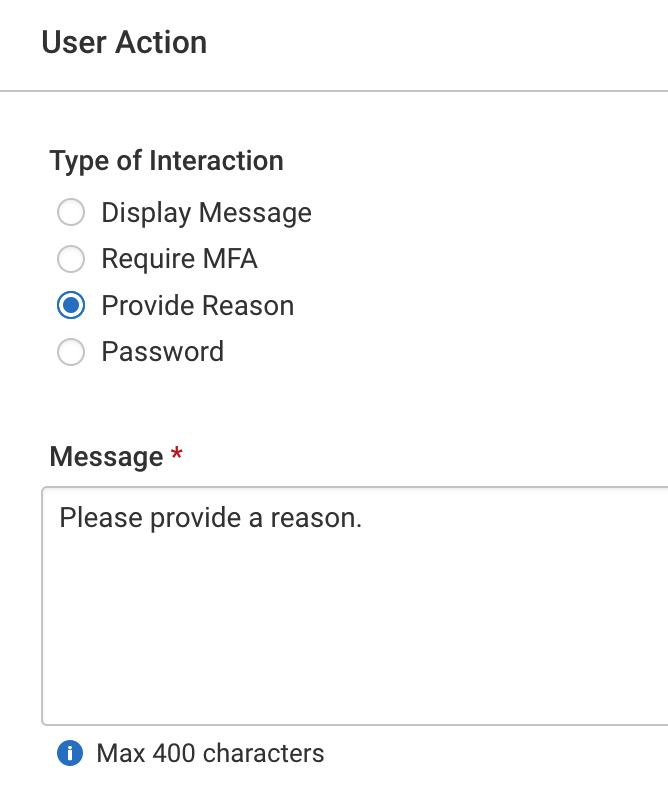
Use this user interaction to capture additional information when a user connects to a specific service—for example, a support ticket number when help desk personnel connect in response to an incident.
The provide reason user interaction can be used in two ways:
For audit. In the drop-down list, the Provide reason user interaction checks whether the user entered a reason for the claim
reason.#name#. After the user responds, the claim evaluates to true and the condition passes. The text is not validated, but the Gateway logs it. You can include it in log reports (for example, to monitor who is accessing specific resources and why).For access control. The internal claim
reason.#name#is exposed after you create a condition that includes the Provide reason access criterion. You can then create conditions based on the text users enter in response to the provide reason user interaction. The new internal claimreason.#name#is listed under Device Claims in the list. You can use this claim to control access based on the user-entered text.
Example: Confirm the ticket number a help desk user is working on before provisioning access to the target system:
Create a new condition:
Add an access criterion and select Provided reason.
Set a claim suffix (name) of your choosing (for example,
ticket).
Add a user interaction of type Provide reason.
Enter a message that prompts users to enter their help desk ticket number.
Enter the same claim suffix (name) (for example,
ticket).
Save the condition. The new internal claim
reason.ticketis added to the system and listed under Device Claims in the list.
Then edit the condition:
Change the access criteria logic to script returns true.
Edit the expression to include the existing Provided reason criterion and validate the format of the new device claim
reason.ticketby using a regular expression.Save the condition.
By combining these two claims in the condition, the user must enter a semi-valid ticket number (for example, begins with TN and is followed by six digits) before access is granted. As an enhancement, you can make an external REST call to validate the reason.ticket claim against an external system to confirm that the ticket number exists.
Password
Use this user interaction to prompt the user to enter their password again or to enter a second password.
The password user interaction can be useful in the following ways:
To protect high value assets. If a user signed in with a password hours earlier, you can require an additional check when they access high-value assets (for example, a payroll system). Configure a password user interaction that uses the original sign-in identity provider.
NOTE
Initial user sign-in does not set the Retyped Password user response claim.
For multifactor authentication. You can configure the password user interaction to use a different identity provider. This requires the user to know two passwords, providing multifactor authentication. When you use this option, the same username must be used for both identity providers because the
usernameclaim is used in this user interaction. Use the client message to clearly indicate which password is required because that information is not provided otherwise.
Using user response claims as access criteria
Access criteria expressions are claims-based and define which actions are allowed when they evaluate to true. Gateways evaluate them at connect time and at various times afterward. Expressions can use static or dynamic claims that can change over time, such as IP address or time of day.
Unlike policy assignment, the criteria type drop-down list includes three user response claim types: Provided MFA, Provided Reason, and Retyped Password. Unlike other claims (which have hard-coded or preconfigured names—for example, in the identity provider), user response claims are named by the claim suffix you configure in the condition when you set the user actions. You must use that same claim suffix in the access criteria expression.
User response claims
When a user enters their Password or uses MFA, the user response claim created includes the claim suffix name and a time stamp.
Type | Claim suffix (name) | Minutes (time window) | Internal claim name | Criteria check method used |
|---|---|---|---|---|
The claim name that refers to this occurrence of the user interaction. | Time window during which the claim evaluates to true. | The internal user response claim generated from the given claim suffix (name). | Matching criteria check method used to evaluate if the claim is true or false. | |
Provided MFA | Example: general | Example: 60 |
|
|
Retyped Password | Example: finance | Example: 60 |
|
|
Provided Reason | Example: github | n/a |
|
|
MFA- and password-based access criteria include a temporal element (for example, “less than 60 minutes old”). This helps prevent the condition from triggering the related user interactions (such as retyping a password) on every new TCP/UDP connection to the protected network resource. Consider setting a reevaluation time so the user interaction is triggered again after the claim expires.
You can include multiple user response claims in your access criteria. For example, to require both a password and MFA, require Retyped Password and Provided MFA before allowing access to a protected resource.
You can create user interactions of different types that use the same user response claim suffix names. The system-assigned prefixes differ, so they are treated as different claims.
You can create user interactions of the same type that use the same user response claim suffix names. For example, if you configure two alternative MFA user interactions with the same suffix name, you need to include only that one user response claim in your access criteria. Either method sets the claim.
You can create user interactions of the same type that use different user response claim suffix names. This lets you require MFA in two different situations that might occur only minutes apart.
Example user response claim naming
Claim suffix names let you create multiple occurrences of the Provided MFA user interaction that use the same MFA provider but behave independently.
Example: Company policy requires users to authenticate once per day (using MFA) to access hosts A, B, and C, each with its own entitlement. To prevent users from being prompted for MFA repeatedly (once per entitlement), share one general condition across those entitlements.
Create a new general condition:
Add acw access criterion and select Provided MFA.
Set a claim suffix (name) of your choosing, such as
pincode.Set the time interval to 480 minutes (8 hours).
Add a user interaction of type Provide MFA.
Enter a message to prompts users to type in their PIN.
Enter the same claim suffix (name) (
pincode).
Include this condition in all entitlements used to access hosts A, B, and C.
The first time any of these entitlements are used, the hasOtp criterion for pincode is false, so the condition fails and the user interaction is triggered. The user sees the Provide MFA message and dialog box on their device. After the user completes MFA, the criterion evaluates to true and the condition passes.
When the user tries another entitlement that uses the same condition, the condition passes and the user interaction is not triggered again.
Now assume the company purchases a new finance system and adopts a new policy that requires users to authenticate immediately before access is granted and hourly thereafter (using the same MFA provider). Create a specific condition and user interaction for the finance system so users can be required to enter a separate MFA response even if they completed the general MFA interaction minutes earlier.
Create a new specific condition:
Add an access criterion and select Provided MFA.
Set a claim suffix (name) of your choosing, such as
finance.Set the time interval to 60 minutes (1 hour).
Add a user interaction of type Provide MFA.
Enter a message that prompts users to enter their PIN.
Enter the same claim suffix (name) (
finance).
Include this condition in the entitlement used to access the new finance system.
Modify the general condition you created earlier:
Change the access criteria logic to any below are true.
Add an access criterion and select Provided MFA.
Set the claim suffix (name) to
finance.Set the time interval to 480 minutes (8 hours).
If the user uses a non-finance entitlement first, both hasOtp criteria—pincode and finance—are false. The condition fails and the user interaction is triggered. The user sees the Provide MFA message and dialog box. After the user completes MFA, hasOtp "pincode" becomes true and the condition passes. When the user later tries the finance entitlement, hasOtp "finance" is still false, so the condition fails and the user interaction is triggered again. After the user completes MFA, hasOtp "finance" becomes true and the condition passes.
If the user uses the finance entitlement first, hasOtp "finance" is false, so the condition fails and the user interaction is triggered. After the user completes MFA, hasOtp "finance" becomes true and the condition passes. When the user then tries a non-finance entitlement, the internal claim hasOtp "finance" is true, so the condition passes because either hasOtp "pincode" or hasOtp "finance" can be true. The user interaction is not triggered.